

Introduction
Few things are more frustrating than hitting “Print” and watching your document get stuck on “Printing” with nothing coming out. The good news is that this is a common problem—and most of the time, you can fix it yourself without calling IT support. In this guide, we’ll walk you through the simple steps to clear a stuck print job and restart your printer so you can get back to business.
Why Print Jobs Get Stuck
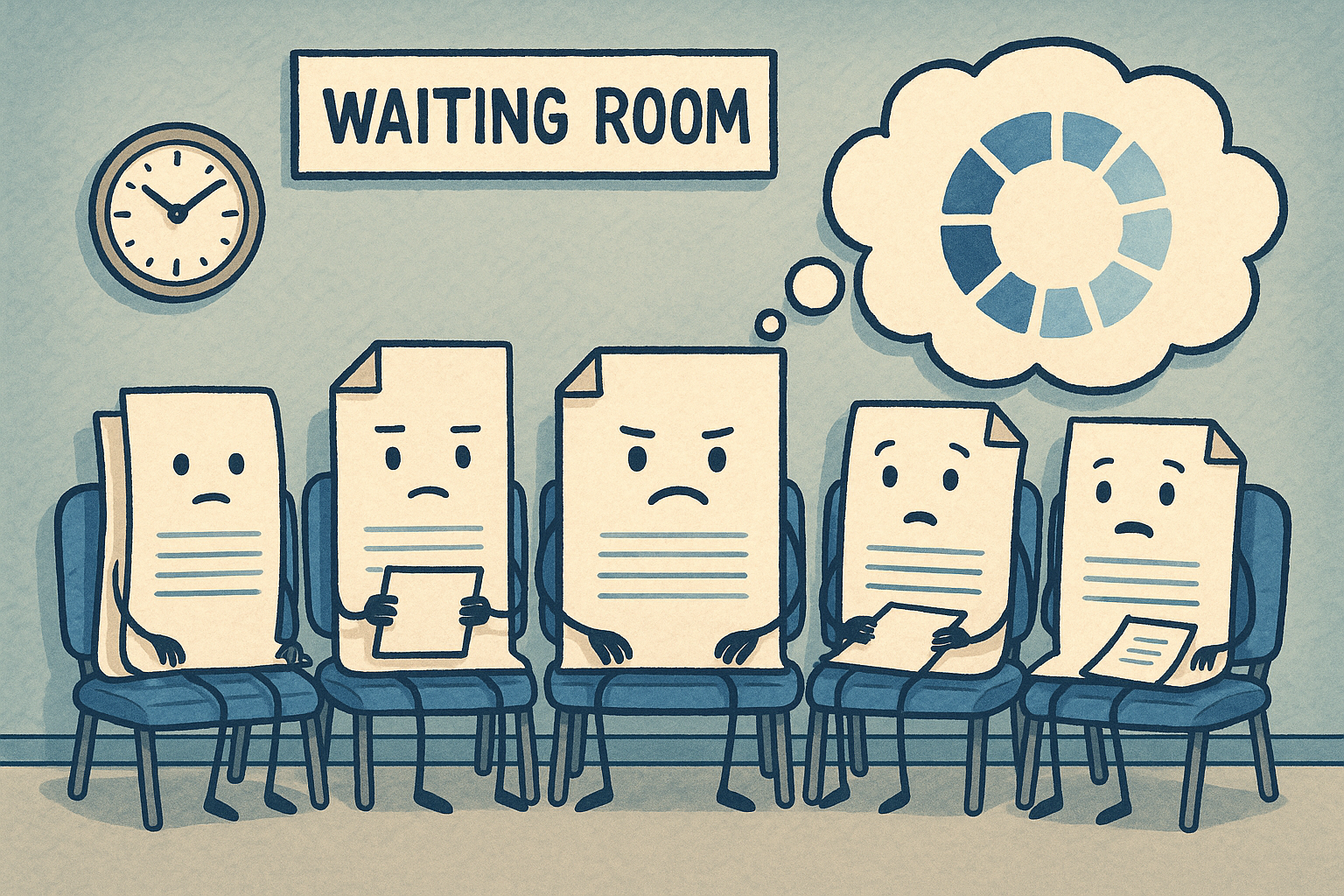
When you send a document to the printer, it doesn’t go straight to the machine. It first passes through a tool in Windows called the Print Spooler. Think of it as a waiting room for documents before they reach the printer. Sometimes, that waiting room gets jammed.
Here are the most common reasons:
– Communication errors between your computer and the printer.
– Glitches in the Print Spooler service that stop jobs from moving forward.
– Large or corrupted files that clog up the queue.
Luckily, clearing the line and restarting the service is usually all it takes.
Step 1: Open the Print Queue
First, let’s see what’s waiting to be printed.
1. Click the printer icon in your taskbar (bottom-right corner).
2. If you don’t see it, go to Control Panel > Devices and Printers.
3. Find your printer, right-click it, and select See what’s printing.
This will open the print queue window, where you can see all pending documents.
Step 2: Cancel a Stuck Print Job
Often, just one bad job is holding up the rest.
1. In the print queue window, right-click the stuck document.
2. Select Cancel.
3. Confirm when prompted.
This won’t delete your file—it just stops Windows from trying to print that specific attempt.
Step 3: Restart the Print Spooler Service
If canceling doesn’t clear things up, restarting the Print Spooler usually will.
1. Press Windows + R on your keyboard.
2. Type services.msc and hit Enter.
3. Scroll down to Print Spooler.
4. Right-click it, select Restart.
This clears out the jam and resets the queue.
Step 4: Try Printing Again
Once the Print Spooler restarts, try sending a small test document (like a single page) to your printer. If it prints correctly, you’re back in business.
When to Call for Extra Help
If print jobs keep getting stuck even after restarting the spooler, the problem may go deeper. You might be dealing with:
– Outdated or corrupted printer drivers.
– Printer hardware issues.
– Network or connection problems.
That’s when calling in IT support is the smart move.
Conclusion
Clearing a print queue may seem intimidating, but with these steps, you can often fix the issue in just a few minutes. If you’re in the Greater Augusta, GA or Aiken, SC area and need help with printer setup, troubleshooting, or other IT challenges, Cross Link Consulting is here to faithfully serve your business.