
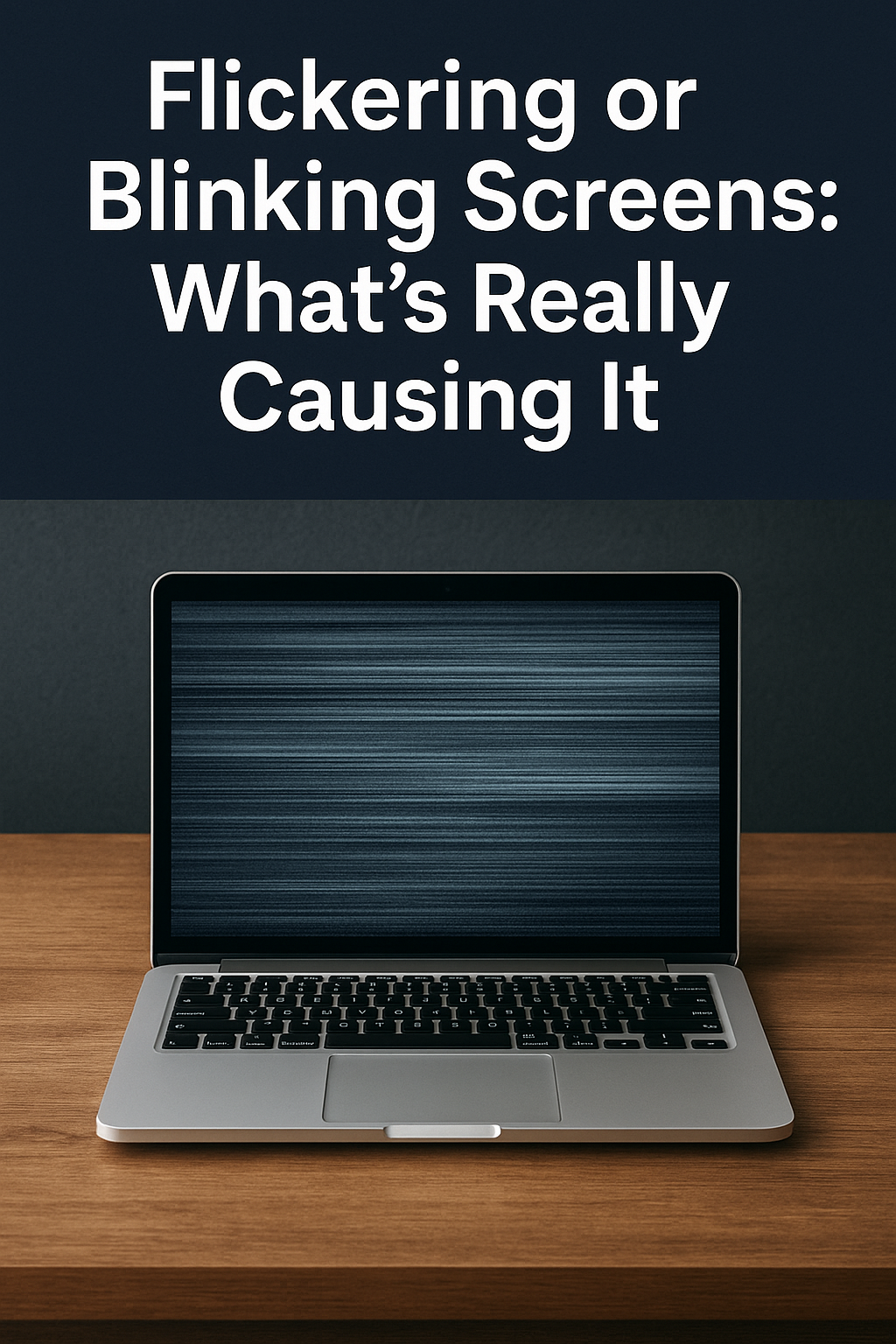

If you’ve ever had your computer screen flicker or blink at the worst possible time—during a presentation, while finalizing a report, or in the middle of an important meeting—you know how frustrating it can be. Not only is it distracting, but it can also be a sign of deeper problems that could impact your business productivity. Let’s break down what’s really behind those annoying screen flickers and what you can do about them.
Common Software Causes
In many cases, the issue comes down to software. Outdated or corrupt display drivers are one of the leading culprits. Your graphics driver acts as the translator between your operating system and your display. If it’s out of date or damaged, screen instability can follow.
Another common software issue is conflicting applications. Some third-party apps, especially those designed to enhance visuals or video playback, can clash with your display settings. Operating system glitches, particularly after major updates, can also cause screens to blink until settings are corrected.
Hardware-Related Issues
Sometimes, the problem isn’t in the software at all—it’s in the hardware. Loose or damaged cables (HDMI, DisplayPort, VGA) can make your screen flicker every time the connection wobbles. Monitors themselves can also fail, especially older models.
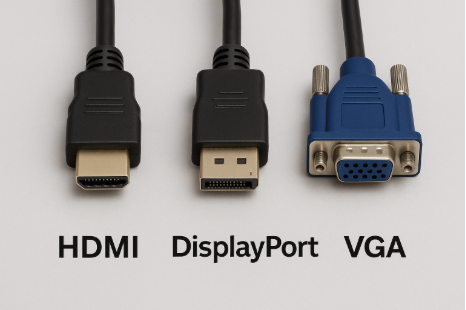
Inside desktops and laptops, graphics cards can overheat, loosen, or simply fail with age, which can trigger display problems that look like random screen blinking.
Settings and Refresh Rate Problems
Your screen’s refresh rate determines how many times per second the display updates. If it’s set incorrectly, your screen may flicker or feel unstable. For most modern monitors, a refresh rate of 60Hz or higher is recommended.
To check in Windows, go to Settings > System > Display > Advanced display settings, and make sure the refresh rate matches what your monitor supports.
How to Troubleshoot Flickering Screens
If you’re experiencing flickering, here are some quick steps you can try before calling for help:
1. Update your drivers – Go to Device Manager and make sure your display adapter is up to date.
2. Check Task Manager – Open Task Manager. If it flickers along with your desktop, the issue is likely hardware. If only the desktop flickers, it’s probably software.
3. Inspect cables and connections – Make sure all video cables are snug and undamaged.
When to Call for Professional Help
While some issues can be fixed with a quick driver update or a cable swap, not every problem has a simple solution. If your screen continues to flicker despite troubleshooting, it may be a deeper hardware failure.
Conclusion
A flickering screen doesn’t just interrupt your work—it could be a warning sign that something bigger is happening with your system. Don’t wait until productivity grinds to a halt.
Cross Link Consulting is here to provide reliable IT services for business. From desktop troubleshooting to server support, we faithfully serve our clients with dependable solutions. If you’re in the Augusta or Aiken area and need help, give us a call today.