

Introduction
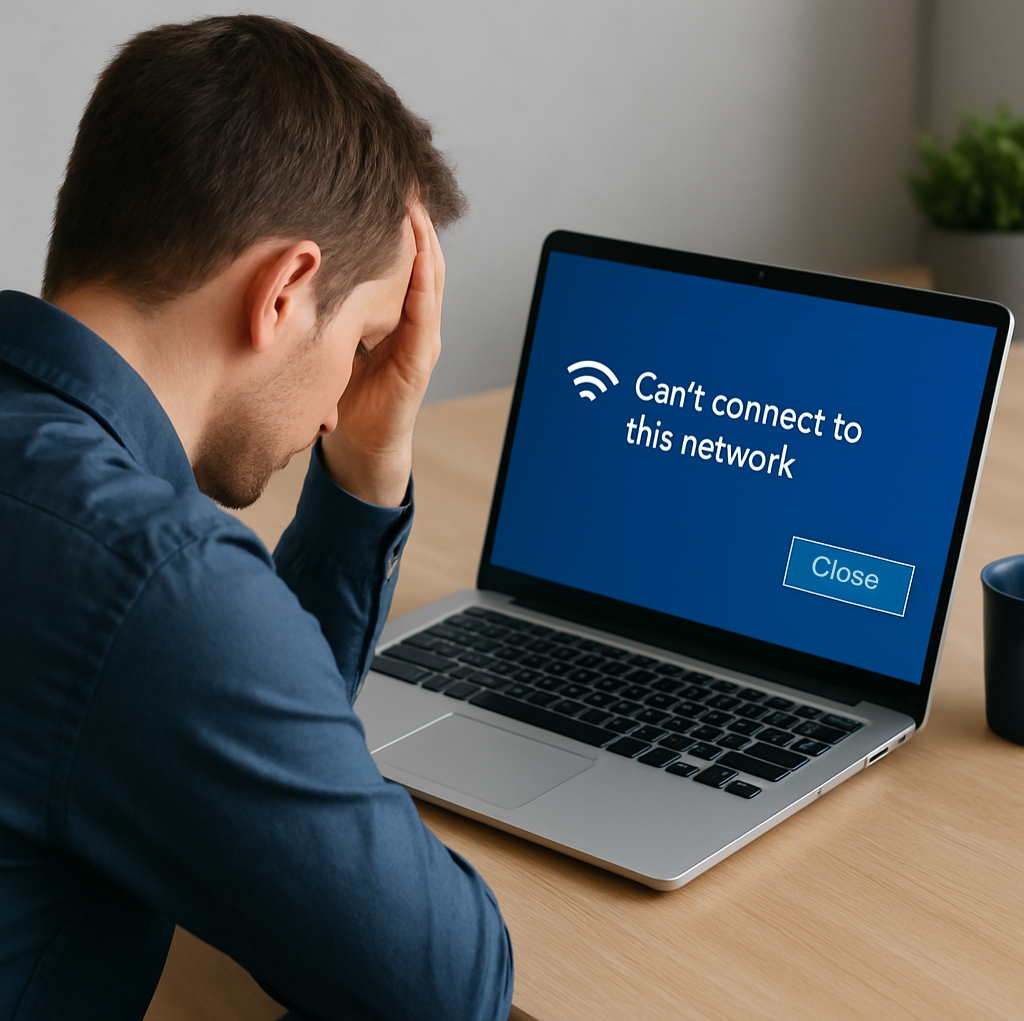
Few things are as frustrating as trying to get online only to be greeted with the message: “Can’t connect to this network.” Whether you’re working remotely, running a small business, or simply browsing at home, losing Wi-Fi at the wrong time can bring everything to a halt. The good news? This error is usually caused by simple issues that can be fixed in just a few minutes without advanced IT skills being required.
Common Causes of the Error
Before jumping into solutions, it helps to understand why this error happens. Some of the most common reasons include:
• Outdated or missing network drivers
• Incorrect Wi-Fi password saved on your device
• Network adapter glitches
• Router or modem issues
• Conflicts with firewall or antivirus software
Quick Fix #1 – Forget and Reconnect to the Network
Often, Windows stores outdated Wi-Fi credentials. To refresh your connection:
1. Go to Settings > Network & Internet > Wi-Fi.
2. Click Manage known networks.
3. Select your Wi-Fi network and choose Forget.
4. Reconnect by selecting the network and entering the correct password.
Quick Fix #2 – Update Network Drivers
Outdated drivers can cause Windows to struggle with Wi-Fi connections. To update:
1. Right-click the Start menu and select Device Manager.
2. Expand Network adapters.
3. Right-click your Wi-Fi adapter and select Update driver.
4. Choose Search automatically for drivers.
Quick Fix #3 – Run the Windows Network Troubleshooter
Windows includes a built-in troubleshooter that can automatically detect and repair many network issues.
1. Go to Settings > Update & Security > Troubleshoot.
2. Select Additional troubleshooters.
3. Click Internet Connections and run the troubleshooter.
Quick Fix #4 – Reset Network Settings
If nothing else works, a full reset clears all network-related settings back to default.
1. Go to Settings > Network & Internet > Status.
2. Scroll down and click Network reset.
3. Follow the prompts to restart your PC.
Note: You’ll need to re-enter your Wi-Fi password after this reset.
When to Call for Professional IT Support
If you’ve tried all the above and still see the error, the issue may point to a failing Wi-Fi card, hardware problem, or deeper configuration error. That’s when it’s time to call in professional IT support.
Conclusion
The “Can’t connect to this network” error is common but usually easy to fix. Start with simple solutions like reconnecting to Wi-Fi or updating drivers. If those don’t work, Windows’ built-in tools and network resets often do the trick.
If you’re ever unsure or need more support, Cross Link Consulting is always here to help.