

Introduction
If someone on your team is having trouble signing in to Microsoft 365—maybe they forgot their password, got locked out after too many tries, or just need a reset for security reasons—you can help them get back on track quickly.
As an administrator, you have the tools to reset a user’s password right from the Microsoft 365 Admin Center. You don’t need to be a technical expert to do it. This guide will walk you through each step, one at a time, using plain language and direct instructions.
Whether you’re a business owner, office manager, or part of an internal IT team, this guide is written for you. All you need is the right permissions in Microsoft 365, and we’ll help you handle the rest.
Let’s get started with what you’ll need before you begin.
Prerequisites: What You Need Before You Start
Before you can reset another user’s password in Microsoft 365, you’ll need to make sure you have the right access and tools in place. Here’s what you’ll need:
- An Admin Role with Permission to Reset Passwords:
- Global Administrator – full access to all settings.
- Helpdesk Administrator – limited access but includes password resets.
- If you’re not sure whether you have the right permissions, check with your IT provider or whoever manages your organization’s Microsoft 365 account.
- Access to the Microsoft 365 Admin Center
- You’ll do everything from the Microsoft 365 Admin Center, which you can access here:
https://admin.microsoft.com - Sign in using your Microsoft 365 admin credentials
- Tip: Bookmark the Admin Center link for quick access in the future.
- You’ll do everything from the Microsoft 365 Admin Center, which you can access here:
Step 1: Sign in to the Microsoft 365 Admin Center
The first step in resetting a user’s password is to access the Microsoft 365 Admin Center.
Here’s how to do it:
- Open your web browser and go to https://admin.microsoft.com.
- Enter your Microsoft 365 admin email address and password.
- If prompted, complete multi-factor authentication (MFA) to verify your identity.
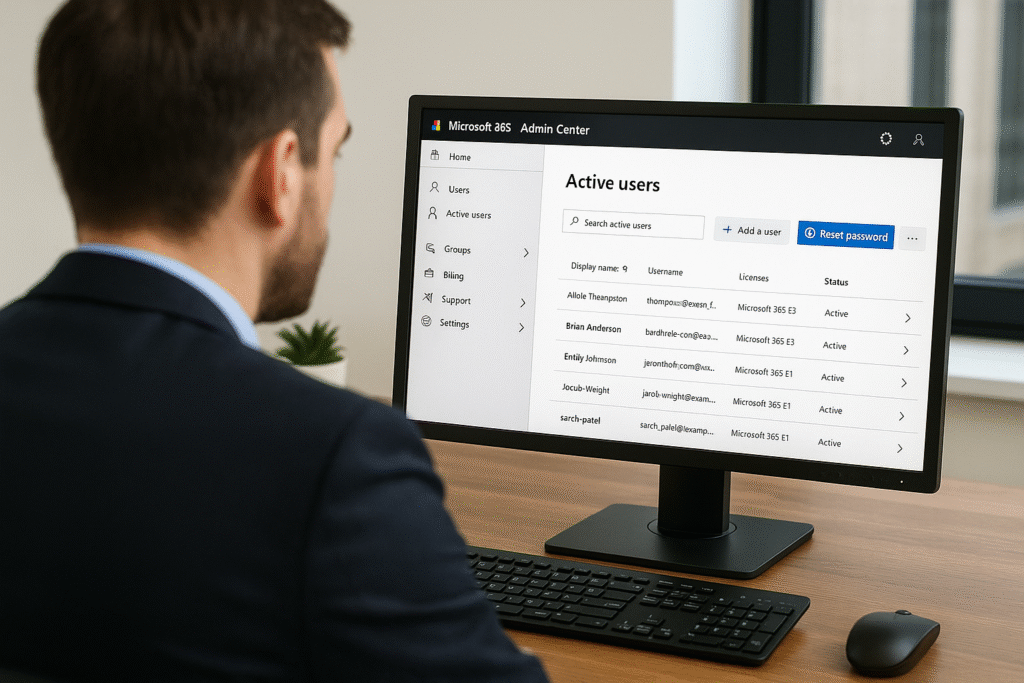
Once you’re signed in, you’ll land on the Microsoft 365 Admin Center homepage. This is your dashboard for managing users, subscriptions, and settings across your organization.
Note: If you see an error message or don’t land on the admin dashboard, you may not have the correct permissions. In that case, check with your organization’s IT contact or Microsoft 365 Global Admin.
Step 2: Navigate to the Active Users Section
Once you’re signed in to the Microsoft 365 Admin Center, you’ll need to locate the list of users in your organization.
Follow these steps:
- From the left-hand navigation menu, click on “Users” to expand the section.
- Under Users, click on “Active users.”
This will open a list of all active user accounts in your Microsoft 365 environment. These are the accounts you manage, and this is where you’ll find the person who needs their password reset.
Tip: If you don’t see the navigation menu on the left, click the three horizontal lines (☰) in the top-left corner to expand it.
Step 3: Find the User Who Needs a Password Reset
Now that you’re viewing the list of active users, the next step is to locate the specific person whose password you need to reset.
Here’s how to find them:
- Use the search bar at the top of the Active Users page.
- Type in the user’s name, display name, or email address.
- Press Enter or click the search icon.
The list will automatically filter to show matching results. Double-check the name and email to make sure you’ve selected the correct user.
Tip: If multiple users have similar names, you can click on their name to confirm their job title or department before proceeding.
Step 4: Select the User and Open Their Account Panel
Once you’ve found the correct user in the Active Users list, it’s time to open their account settings so you can begin the password reset.
Here’s what to do:
- Click directly on the user’s name from the search results or list.
- This will open the user details panel on the right-hand side of the screen (or navigate you to a new page, depending on your screen size).
In this panel, you’ll see a summary of the user’s account, including their email address, assigned licenses, and current roles. You’ll also find administrative actions you can take—one of which is resetting their password.
Tip: If nothing happens when you click the user’s name, make sure your browser isn’t blocking pop-ups or scripts. Try refreshing the page if needed.
Step 5: Click ‘Reset Password’
Now that you’ve opened the user’s account panel, you’re ready to begin the actual password reset process.
Follow these steps:
- In the user’s account panel, look for the toolbar at the top or the list of actions available.
- Click on the button labeled “Reset password.”
- This will open a new window or side panel where you can choose how you want to reset the password.
- Note: If the “Reset password” button is grayed out or missing, you may not have the correct permissions.
Step 6: Choose the Password Options
After clicking Reset password, you’ll see a screen with a few options for how the new password will be created and delivered.
Here’s what to do:
- Choose how the new password will be set:
- Auto-generate password (recommended)
- Let me create the password manually
- Decide if the user should change their password on next sign-in:
- Best practice is to leave this box checked.
- Select how to share the new password:
- Email sign-in instructions to yourself or another admin
- Copy the password to share it securely
Security Tip: Never send passwords in plain text via email. If you’re not using Microsoft’s built-in email option, consider calling or texting the user directly.
Step 7: Complete the Reset and Notify the User
Once you’ve reviewed the password options and made your selections, it’s time to finalize the reset.
Here’s how to wrap things up:
- Click the “Reset” button at the bottom of the panel.
- After a few seconds, you’ll see a confirmation message.
- You’ll have the option to copy, download, or email the new password.
- Once you’ve reset the password, reach out to the user:
- Provide the temporary password. Remind them they’ll need to sign in and set a new password.
- Reminder: Avoid sending passwords by email unless using Microsoft’s secure email feature.
Troubleshooting Tips
If you run into issues while trying to reset a password in Microsoft 365, here are a few common problems and how to fix them:
Can’t Find the “Reset Password” Button in Microsoft 365 admin center:
- Ensure you have the correct admin role.
Getting a Permissions Error resetting a password in Microsoft 365 admin center:
- You may not have privileges. Ask a Global Admin to assist.
User Still Can’t Sign In After Password Reset:
- Verify the password and check for extra spaces.
- Ensure they complete multi-factor authentication.
Browser Issues or Buttons Not Responding:
- Refresh the page or try a different browser.
- Clear your browser’s cache and cookies.
Tip: Use the Help icon in the Admin Center for Microsoft support articles.
Final Thoughts & Security Reminders
Resetting a user’s password in Microsoft 365 is a straightforward task when you have the right access and know where to go. With just a few clicks, you can help your team members regain access to their accounts and get back to work quickly.
But with that access comes responsibility. Here are a few final tips to keep your organization secure:
- Always verify the identity of the person requesting a password reset.
- Encourage users to create strong, unique passwords.
- Remind users not to reuse passwords across accounts.
- Consider enabling Multi-Factor Authentication (MFA) for all users.
For more information about password policies, visit Microsoft’s official guidance:
https://learn.microsoft.com/en-us/microsoft-365/admin/misc/password-policy-recommendations
By following these steps and best practices, you’re helping to protect your team and keep your business running smoothly. If you’re ever unsure or need more support, Cross Link Consulting is always here to help.