
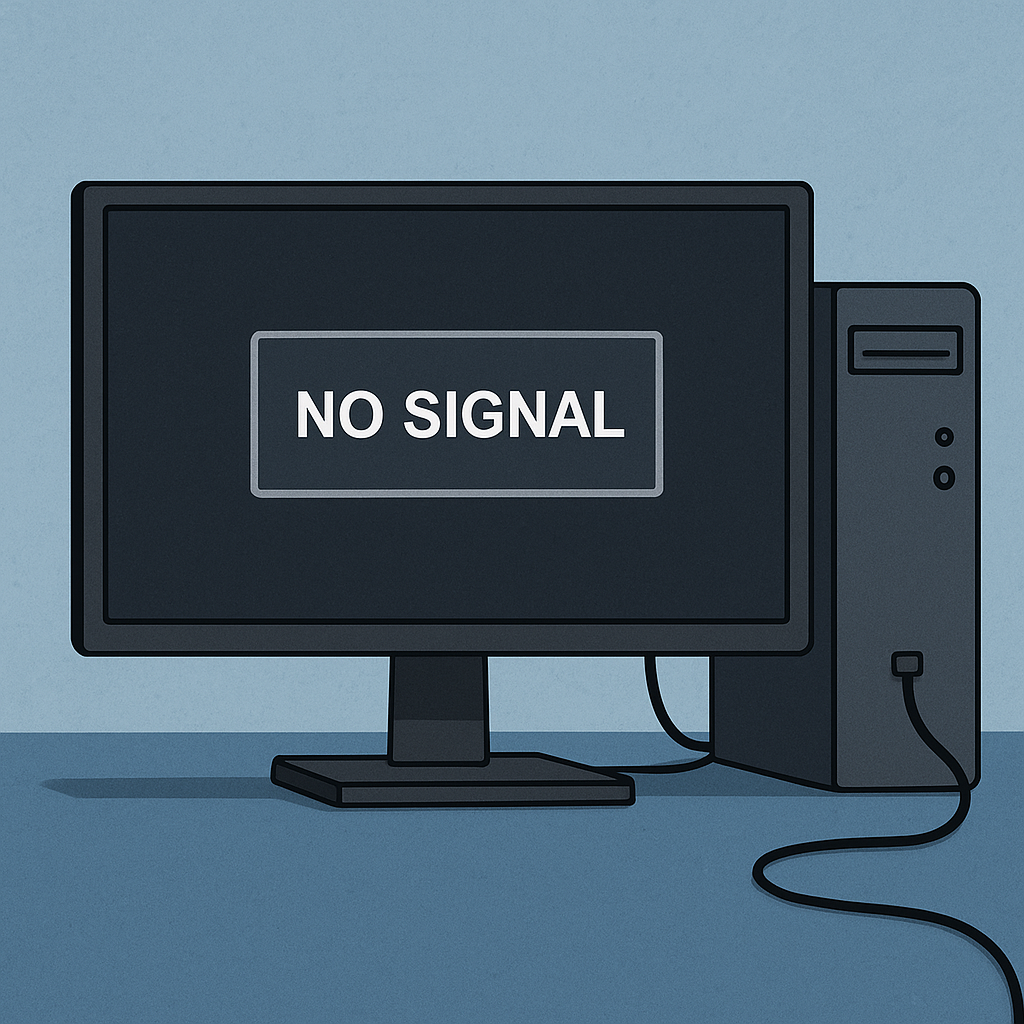

Why “No Signal” Happens
Few things are more frustrating than powering on your computer, only to be met with a black screen that reads “No Signal.” Even though everything is plugged in, the monitor refuses to display. The good news is that this issue is usually solvable without buying new equipment. With a little troubleshooting, you can often pinpoint the cause and get back to work.
Check the Obvious First
Start simple. Is your monitor actually powered on? (Trust me this happens more times than you think) Double-check that the power light is glowing. Next, confirm that your monitor’s input is set correctly. Many monitors have multiple input options like HDMI, DisplayPort, or VGA. If your computer is using HDMI but your monitor is set to DisplayPort, you’ll get “No Signal.” A quick press of the input or source button often solves the problem.
Inspect the Cables
Your video cable is the bridge between your computer and your monitor. If that bridge is loose, damaged, or outdated, your monitor won’t display properly.
– HDMI cables are the most common today and support both video and sound.
– DisplayPort (DP) is often used in business environments and supports higher refresh rates and resolutions.
– VGA is older, bulkier, and common in legacy equipment but less reliable today.
Check both ends of your cable for a firm connection. If the cable looks bent or frayed, swap it with a spare. If your computer has multiple video ports, try plugging into another one.
Verify the Computer’s Output
Sometimes the issue is not with the monitor at all but with your computer. If you have another monitor nearby, test your computer with it. If it works, your original monitor may be the issue. If not, the problem could be your graphics card or onboard video.
For desktop users with a dedicated graphics card, ensure your monitor is plugged into the graphics card and not the motherboard video port.
Input Source & Resolution Conflicts
Even if the connection is solid, your monitor may reject the signal if the resolution or refresh rate is unsupported. For example, sending a 4K signal to a monitor that only supports 1080p may cause problems.
If you suspect this, restart your PC in safe mode or connect to another display, then reset your screen resolution and refresh rate in Windows.
Graphics Card and Driver Issues
Drivers act as the translator between your computer’s hardware and operating system. If they’re outdated or corrupted, your monitor may not recognize the signal.
– Update drivers through Windows Update or your graphics card manufacturer’s website.
– If updating doesn’t work, reinstall the driver completely.
For desktops, make sure your graphics card is seated correctly inside your computer.
When Hardware is the Problem
If you’ve checked everything else and still get “No Signal,” you may be facing a hardware issue. Possible culprits include:
– A failing graphics card
– A defective monitor
– A motherboard issue
Before rushing out to buy new parts, it’s best to consult an IT professional who can test components safely and provide the right fix.
Get Back to Work Quickly
Most “No Signal” problems have straightforward solutions, from checking cables to adjusting settings. But when the issue goes deeper, you don’t have to face it alone. Cross Link Consulting is here to help you resolve technical challenges, so you can focus on running your business. If you’re ready for a trusted IT partner who serves with humility and dedication, reach out today.