


Introduction
You press the power button, wait for your computer to come alive, and… nothing. A blank screen stares back at you. Is your computer broken? Or is it just the monitor?
When your screen won’t turn on, it can feel like a major problem, but often the fix is simpler than you think. Knowing whether the issue lies with the monitor or the PC not only saves you time and stress, but it also helps your IT support team solve the problem faster.
In this post, we’ll walk through a few simple troubleshooting steps anyone can try before calling in for professional help.
Step 1: Check the Power
Start with the basics: is your monitor plugged in and turned on? Check that the power cable is secure at both ends, and that the outlet is working by testing it with another device. Many monitors also have a small power light. If it’s off, your monitor may not be receiving power.
Step 2: Look for Monitor Clues
If your monitor powers on but still shows nothing, look for hints. A message like “No Signal” usually means the screen is fine but isn’t receiving input from the computer. If the display is very dim or flickering, the issue may be with the monitor itself.
Step 3: Test the Cables
Loose or damaged cables are one of the most common causes of blank screens. Check your HDMI, DisplayPort, or VGA connections and reseat them firmly. If possible, try a different cable or a different port on your PC to rule out a bad connection.
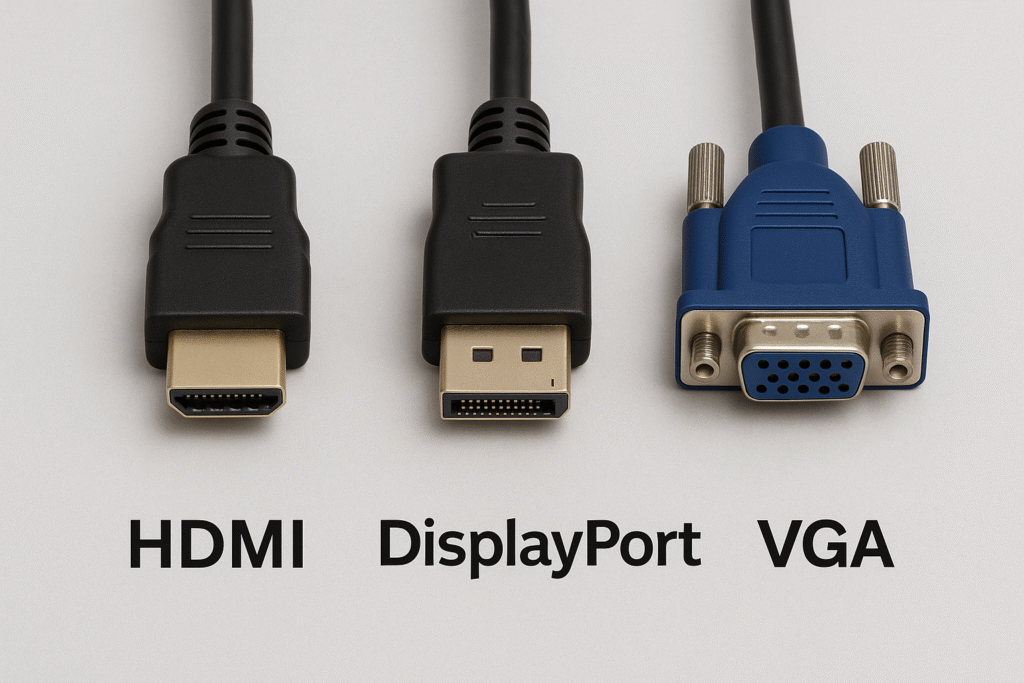
Not all display cables are the same. HDMI (left) is the most common modern option and carries both video and audio. DisplayPort (center) is often used for high-performance displays and multiple monitors. VGA (right) is an older connector that only carries video and is mostly found on legacy equipment.
Step 4: Test the PC
Now check if your computer is actually turning on. Do you hear fans spinning or see lights on the case? Do your keyboard or mouse light up? If the PC shows no signs of life, the problem likely isn’t the monitor—it’s the computer itself.
Step 5: Try Another Monitor or Device
If you have another monitor handy, connect it to your PC. If the new monitor works, the original screen is likely faulty. On the other hand, try plugging your monitor into a different computer. If it still doesn’t show an image, the monitor is the issue.
Why It Matters Before Calling Support
Taking a few minutes to test these basics can save time, frustration, and possibly service costs. When you call IT support, being able to say whether the problem is with the monitor or the PC helps them diagnose and resolve the issue more quickly.
Closing & Call to Action
Don’t panic if your screen stays black—most display issues can be narrowed down with these simple steps. And if the problem persists, you don’t have to figure it out alone. That’s what managed IT services are here for. Contact us today for trusted business IT support, cybersecurity protection, and expert troubleshooting.